Resize vs. Compress: How to Reduce Image Size the Right Way
Learn when to change pixel dimensions, when to lower file size, and how to combine both without stretching your photo.
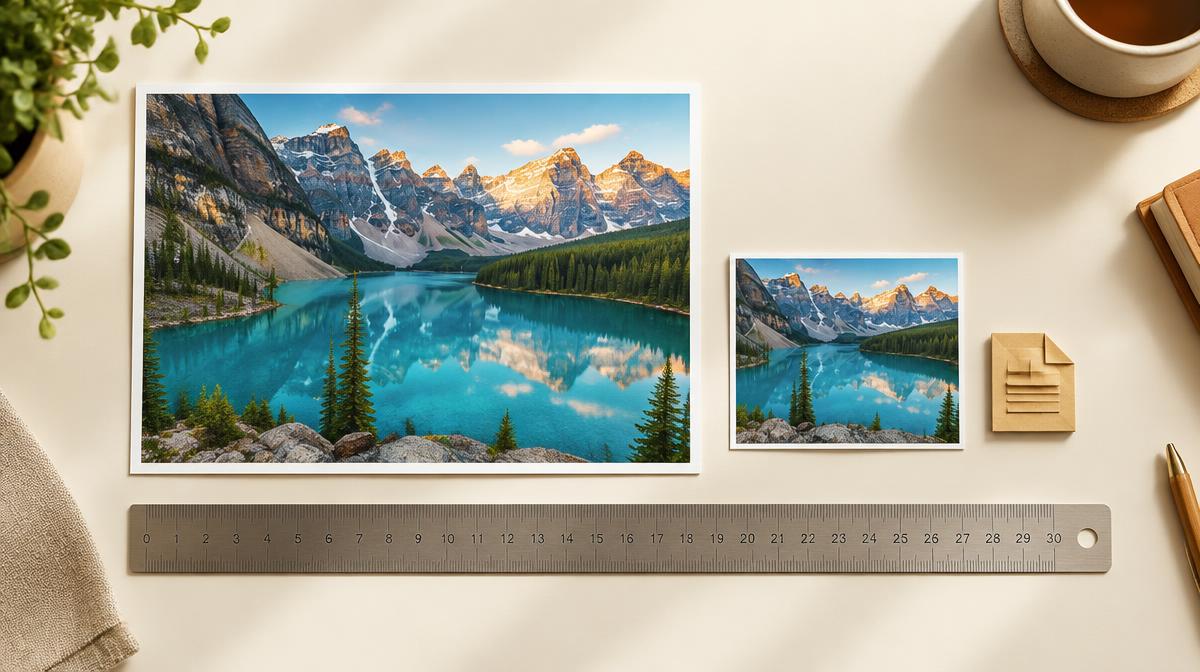
An upload form says your image is too large. Does it need fewer pixels, fewer kilobytes, or both? That distinction matters: a photo can have the correct dimensions and still exceed a file-size limit, while a small file can have the wrong shape for a profile picture. Start by reading the destination’s requirements rather than guessing at a quality setting.
Image dimensions and file size are different measurements
Dimensions describe the pixel grid: for example, 2400 × 1600 pixels. File size describes storage, such as 800 KB or 2 MB. The two are connected, but there is no fixed conversion between them. Fine leaves, grain and detailed textures can take more data to encode than a smooth sky with the same dimensions.
| Operation | What changes | Use it when |
|---|---|---|
| Resize | Pixel width and height | The image is larger than its intended display |
| Compress | Encoded file size and possibly detail | The image exceeds a KB or MB limit |
| Crop | Visible area and often shape | The framing or aspect ratio is wrong |
When should you resize a photo?
Resize when the receiving website asks for a specific width or height, or when your original has far more pixels than you need. Reducing a 4000 × 3000 image to 1600 × 1200 keeps its 4:3 shape but leaves only 16% as many pixels. That is a pixel-count calculation, not a promise of an 84% smaller file: the export format and image content also affect the result.
Keep the aspect-ratio lock on unless you intentionally want to change the shape. If you need a square from a wide photo, crop the image first. Entering a square width and height with the lock off can stretch faces or products instead of creating a natural square crop.
When should you compress instead?
Compress when the dimensions already meet the requirement but the file is too heavy. JPG and WebP quality controls trade some image information for a smaller file. PNG is lossless, so the same quality-slider approach does not apply. Converting a photograph to JPG may reduce its size, but converting a transparent logo to JPG also removes transparency.
A practical resize-and-compress workflow
- 1Open the Resize Imager image tool and upload your original photo. Keep a separate copy of the original.
- 2In Resize dimensions, enter the required width with the aspect ratio locked. Check the calculated height.
- 3Choose an output format accepted by your destination. Use JPG for an ordinary photo, or retain PNG when transparency is required.
- 4Use Reduce file size to adjust quality when you need fewer bytes. Watch the output size and savings readout.
- 5Open the downloaded copy, check fine edges and text at its intended size, and confirm the file meets the upload requirement.
Why a resized image can still be large
A PNG export can remain large even after you reduce its dimensions, especially for a detailed photograph. Likewise, a very high-quality JPG may need more storage than a lower-quality JPG of the same width. Judge the downloaded file, not just the dimension fields. Avoid repeatedly editing an already compressed JPG; start from the original when trying different settings.
Common questions
Will resizing improve a blurry photo?
No. Making an image larger adds pixels through interpolation; it cannot recover genuine detail that was never captured. Use the best available original and avoid unnecessary enlargement.
Which should I do first: resize or compress?
Usually choose the final crop and dimensions first, then adjust the output format and compression. This keeps you from fine-tuning a file that still contains pixels you do not need.
Sources & further reading
Try it yourself.
All 26 tools are ready when you are.
Keep reading
How to Reduce an Image Below 100 KB, 200 KB or 1 MB
A careful workflow for meeting upload limits using dimensions, format and quality—with no guaranteed-size shortcuts.
JPG vs. PNG vs. WebP: Which Image Format Should You Use?
Compare photo quality, transparency, compatibility and file size before choosing an image format.