How to Crop an Image: Aspect Ratios, Framing and Clean Exports
Use square, portrait and landscape crops without stretching the subject or cutting away important details.
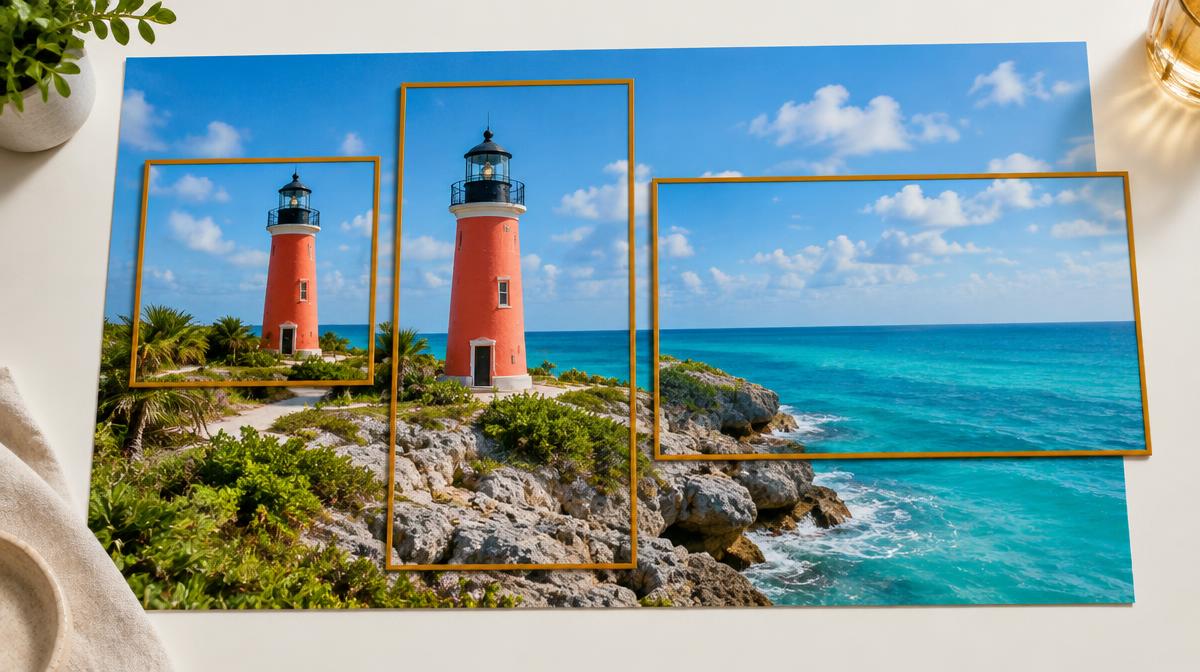
A good crop changes what the viewer notices. It can remove distractions, create room around a face or fit a photo into a required shape. Cropping is not the same as resizing: it selects part of the original image. Resizing then changes the pixel dimensions of that selection. Keeping those operations separate prevents stretched subjects and awkward framing.
Understand aspect ratio before choosing a preset
Aspect ratio is width divided by height. A 1:1 crop is square; 16:9 is wide; 9:16 is tall. Two images can share a ratio but have very different pixel counts. For example, 1600 × 900 and 1280 × 720 are both 16:9, but the first contains more pixels.
| Crop preset | Shape | Possible use |
|---|---|---|
| Free | Unconstrained | Custom framing or removing an edge |
| 1:1 | Square | Square cards and profile-style compositions |
| 4:3 or 3:2 | Landscape photo | General photography layouts |
| 16:9 | Wide landscape | Wide banners and video-style layouts |
| 9:16 | Tall portrait | Vertical compositions |
These are compositional examples, not universal platform requirements. Check the actual destination’s shape, dimensions and safe areas. A platform can display different crops in a feed, profile or preview even when the uploaded file meets its specifications.
Make a crop with the interactive selector
- 1Open the Crop image tool and upload the original.
- 2Select Free or an aspect-ratio preset.
- 3Drag the crop area to move it and use its handles to adjust the selection.
- 4Watch the selected pixel dimensions and check that all important content is inside the frame.
- 5Download the crop as PNG. If another format or smaller file is needed, convert or compress the saved crop afterward.
Use guides as a starting point, not a rule
The rule-of-thirds guides divide the frame into nine areas. Placing a subject near an intersection can create a balanced composition, but symmetry may work better with a centered subject. For a portrait, leave enough room around the head. For a person looking to one side, consider leaving more space in that direction.
Product photos often need a consistent amount of space around the object across a whole catalog. Compare crops together rather than treating every image in isolation. Check labels and packaging edges; a clean-looking crop that removes required information can be unsuitable for a listing.
Crop first, resize second
If a website requires a square image, choose a square crop before setting exact dimensions. Turning off the aspect-ratio lock and forcing a wide photo into square dimensions distorts it. After cropping, use Resize Imager to match the required pixel size while keeping the crop’s proportions.
Common cropping problems
- A face or logo sits too close to an edge and is clipped by the destination’s preview.
- A tiny selection is enlarged heavily and looks soft.
- The subject is centered automatically even when the image would benefit from more space on one side.
- The output has the right ratio but not the required pixel dimensions.
Frequently asked questions
Does cropping lower quality?
It keeps a smaller region of the source. That region may look fine at its existing size, but enlarging it can reveal limited detail. Crop from the highest-resolution original you have.
Will changing the ratio stretch the image?
A crop changes the selected region rather than stretching the whole photo. Distortion happens when you resize width and height independently without preserving proportions.
Sources & further reading
Try it yourself.
All 26 tools are ready when you are.
Keep reading
Resize vs. Compress: How to Reduce Image Size the Right Way
Learn when to change pixel dimensions, when to lower file size, and how to combine both without stretching your photo.
How to Reduce an Image Below 100 KB, 200 KB or 1 MB
A careful workflow for meeting upload limits using dimensions, format and quality—with no guaranteed-size shortcuts.