JPG to PNG: What Changes, What Does Not, and When to Convert
Understand why JPG-to-PNG conversion does not restore lost detail or automatically remove a background.
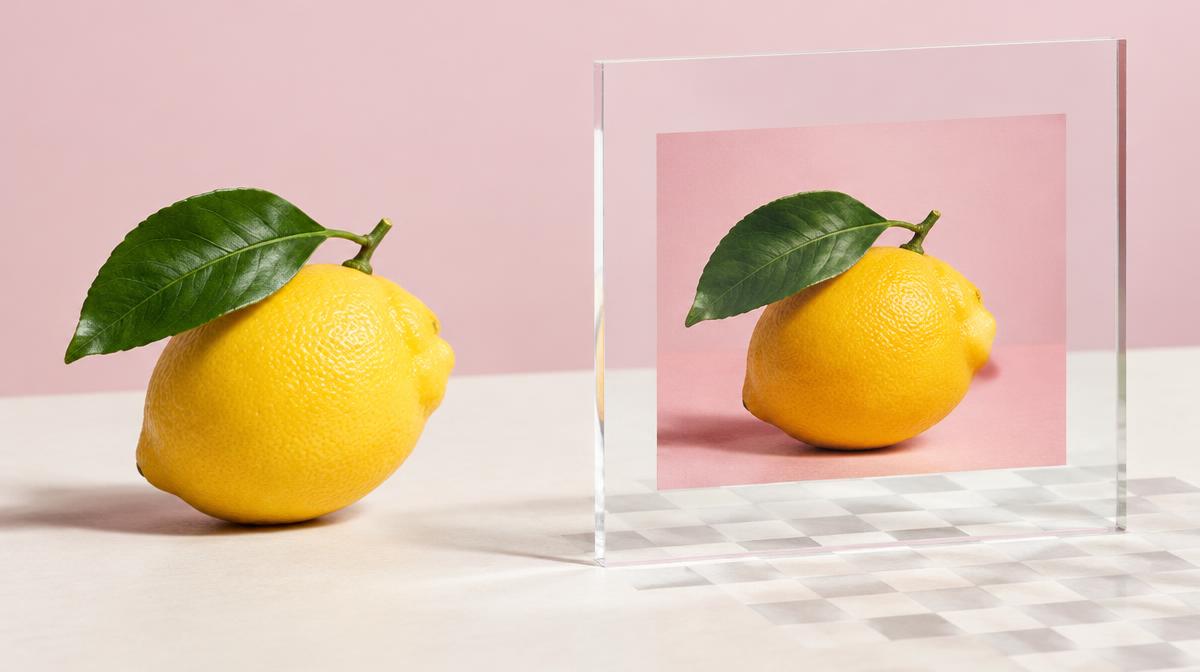
Converting a JPG to PNG is useful when an editor or upload form specifically requires PNG. It is not a magic quality upgrade. The new file stores the decoded picture in another format, including the background and any compression artifacts already present. Knowing that distinction prevents unnecessary large files and disappointing results.
What actually happens during conversion
The converter reads the JPG, draws its pixels and saves them as PNG. PNG’s lossless encoding avoids adding another round of JPG-style compression to that saved picture. However, it cannot reconstruct texture or detail previously discarded by the JPG encoder. Think of it as changing the container for the current image, not recovering the camera original.
| Expectation | Actual result |
|---|---|
| A sharper version of a blurry JPG | The same available pixel detail |
| A transparent background | The JPG’s existing opaque background remains |
| A smaller file | The PNG may be larger |
| A PNG-compatible copy | Yes, the image is saved in PNG format |
Does JPG to PNG make a background transparent?
No. PNG supports transparency, but a JPG has no transparent pixels to preserve. A white wall, colored backdrop or studio background remains part of the picture. The checkerboard pattern you may see in an editor is usually a transparency indicator, not something that format conversion creates.
If you need a cutout, perform background removal as a separate operation. Try the Background Remover, inspect the edges and save a format that supports transparency. Hair, thin stems and translucent objects deserve special attention; a background-removal result is not the same task as an ordinary conversion.
Convert a JPG to PNG in Resize Imager
- 1Open the JPG to PNG converter.
- 2Upload the JPG you want to convert. Use the highest-quality available source.
- 3Review the preview and create the PNG copy. There is no JPG-style quality slider for PNG.
- 4Download the image and check that the receiving application accepts the new file.
When conversion is worthwhile
- A design tool or portal explicitly requires a PNG file.
- You want to avoid another lossy JPG save during a specific editing handoff.
- You plan to add transparent regions in another editing step.
- You need a PNG copy of a screenshot or graphic that is currently stored as JPG.
If you simply want a smaller photo for a website or email, PNG may be the wrong direction. Use Resize Imager to choose sensible dimensions and reduce file size instead. Keep the JPG original so you can return to it without depending on a chain of converted copies.
How to check the output
Open the downloaded PNG at 100% zoom and compare text and edges with the source. Existing JPG artifacts should not be mistaken for a failed conversion. Check the actual file size too: a photograph with fine detail may become significantly heavier in PNG. Avoid uploading a large PNG where a compact JPG would satisfy the requirement.
Common questions
Can I just rename .jpg to .png?
No. Renaming changes the filename, not the encoding. Some applications detect that mismatch and reject the file.
Is PNG always higher quality?
PNG saves the current pixel image losslessly. It does not improve a low-resolution or previously compressed source. Use the original capture or export when genuine detail matters.
Sources & further reading
Try it yourself.
All 26 tools are ready when you are.
Keep reading
PNG to JPG: Reduce Photo File Size and Handle Transparency
Convert PNG photos to JPG with the right quality setting and understand why transparent areas become white.
Resize vs. Compress: How to Reduce Image Size the Right Way
Learn when to change pixel dimensions, when to lower file size, and how to combine both without stretching your photo.